Introduction
In this second article we take the iCE40UP5K FPGA from the theoretical level to a complete practical flow on Ubuntu. In article FPGAs for embedded designers: what they are and why you should use them (iCE40UP5K) we built the mental model needed to address this topic without misunderstandings: an FPGA is not a “more powerful microcontroller,” but a reconfigurable device that allows for the implementation of dedicated digital logic, with real parallelism, predictable latency, and much more direct control over the hardware. That theoretical step was essential, because without a solid conceptual foundation, you risk approaching the development flow mechanically, simply copying commands without truly understanding what’s happening. In this second article, we move from the mental model to practice: installing the open-source toolchain, verifying the environment, simulating the project, generating the bitstream, and actually programming the iCESugar board based on the Lattice iCE40UP5K. The goal is not to offer the usual “blink” of an introductory tutorial, useful only for demonstrating that the tool compiles, but to immediately set up a credible, reproducible workflow that is already quite close to what would be used in a serious embedded context. The chosen project is deliberately small and simple, but not trivial: it uses real Verilog, real physical constraints, testbench simulation, synthesis, place and route, and hardware validation via RGB LEDs and onboard DIP switches. To standardize the environment and avoid unnecessary friction between different systems, the operating reference will be Ubuntu 24.04, installed natively or in a virtual machine. For those starting from scratch or wanting to realign with the environment used in this series, the enabling prerequisite remains the article How to Install Ubuntu in a Virtual Machine with VirtualBox on Windows and Linux, which can be considered the infrastructural starting point for the following work.
Hardware and reference environment
For the hardware part, in this series we will use the iCESugar v1.5 as a reference, a compact and simple board yet suitable for developing projects of a certain complexity, based on the Lattice iCE40UP5K. The choice is not accidental: on the one hand, it is a fairly accessible FPGA in terms of cost and complexity, on the other, it is perfectly suited to building a serious path with a completely open-source toolchain, without depending on large and closed proprietary environments or complex and unclear development flows.
I bought it from AliExpress, and it can also be found through the MuseLab / iCESugar project pages online.
The board already integrates everything you need to get started in a concrete way (RGB LEDs, DIP switches, USB interface and programming via iCELink) and therefore allows you to immediately focus on the actual FPGA flow, instead of getting lost in cabling, adapters or additional external components. As for the software environment, the official reference for this series will be Ubuntu/Kubuntu 24.04 LTS, both in native installation and in a virtual machine. The choice of Linux, and Ubuntu in particular, stems from the fact that, in the world of open source FPGA tools, Linux remains the most linear, predictable, and reproducible environment. On Ubuntu, the necessary packages are available with clear names, dependencies are managed without too many surprises, the USB connection to the board is more transparent, and the entire workflow (simulation, synthesis, place and route, bitstream generation) is easier to automate. In theory, some of this work could be done elsewhere, but in practice, it would increase the complexity, exceptions, and secondary issues that add no educational value to an introductory series. For this reason, we prefer to establish a single, well-controlled environment here: less improvisation, fewer incompatibilities, more focus on the actual project. Those who don’t already have a Linux machine can easily follow the virtualization route, which is more than sufficient for this type of activity; the operational reference therefore remains the article cited in the introduction How to Install Ubuntu in a Virtual Machine with VirtualBox on Windows and Linux, which should be considered the practical prerequisite on which all subsequent work is based.
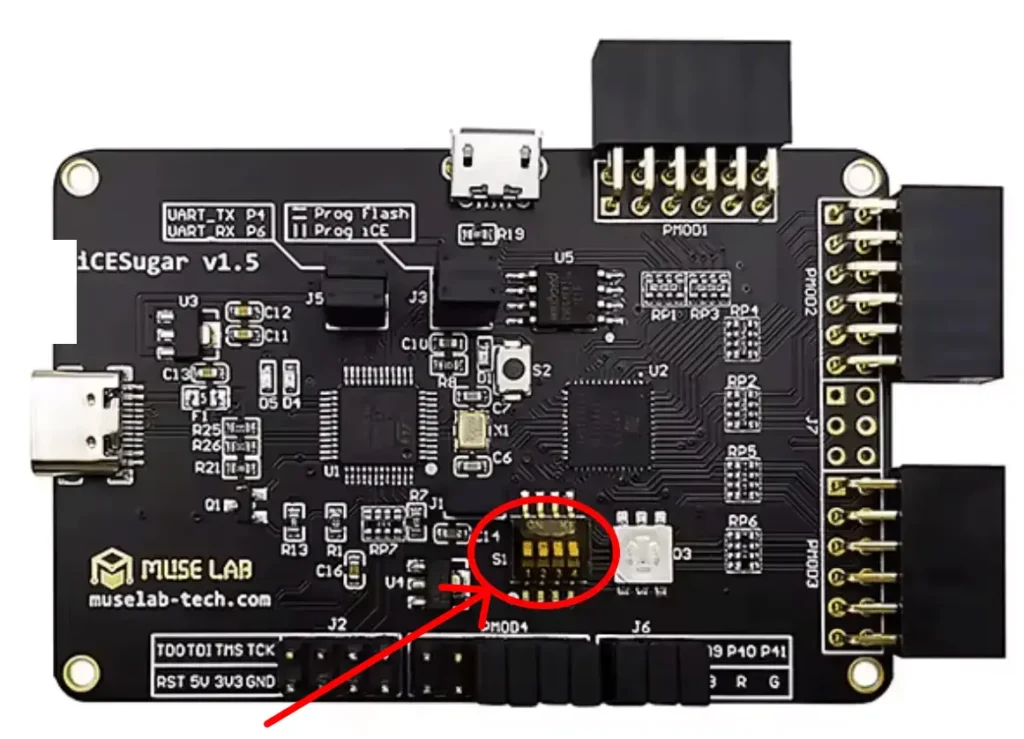
The following image shows the board and the position of the DIP switches:
What we will install for our project on the iCE40UP5K FPGA
At this stage, we won’t be installing a generic “FPGA environment,” but a very specific set of tools, each with a clear role in the workflow. Yosys will handle Verilog code synthesis, i.e., translating the hardware description into a logical representation compatible with the iCE40 family. nextpnr-ice40 will perform place and route, positioning the logic on the FPGA’s physical resources and connecting the various internal blocks. On Ubuntu 24.04, the most convenient package to install is nextpnr-ice40-qt, which also includes the GUI but continues to provide the nextpnr-ice40 executable. The fpga-icestorm package will then provide support tools such as icepack and icetime, needed to generate the final bitstream and obtain timing information, respectively. For simulation, we’ll use Icarus Verilog, while GTKWave will be used to graphically observe the waveforms and verify the design’s behavior before even programming it on the board. Together, these tools already cover a complete and realistic workflow: simulation, synthesis, physical implementation, and generation of the file to be loaded onto the FPGA. To avoid forcing the reader to reconstruct everything manually, the ZIP package distributed with the article also includes two support scripts, scripts/setup_ubuntu_fpga_toolchain.sh and scripts/check_fpga_env.sh, designed to automate the installation and verification of the environment, respectively. The scripts were tested on a virtual machine cleaned of the main FPGA tools, reinstalling the toolchain from scratch and then verifying the correct functioning of the environment before rebuilding the project. In other words, the reader will not only receive a folder with the Verilog sources, but a small work package already organized to be executed, checked, and reproduced with the least possible friction.
The following link allows you to download the complete project:

Installing toolchain on Ubuntu 24.04
Once you’ve downloaded the ZIP package attached to the article, the next step is to set up a small local workspace and launch the scripts included in the project. The idea is deliberately simple: no Git repositories, no clones, no branches, no dependencies on additional tools beyond those strictly necessary. The reader simply needs to open a shell, create a dedicated project folder, unzip the downloaded archive, navigate to the project directory, and run the two provided scripts: the first will install the toolchain, the second will verify that all the expected components are actually available and functioning. This way, the workflow remains linear, reproducible, and above all, suitable even for those who don’t use Git regularly but still want to work in an organized manner.
Here are the operating steps. For convenience, we’ll assume the downloaded ZIP file is located in your downloads folder; if the actual path is different, simply adapt the unzip command.
Open the terminal and create the working folder
cd ~
mkdir -p projects
Make sure you have unzip
sudo apt update
sudo apt install -y unzip
Move to your working directory and unzip the downloaded package
cd ~
cd Downloads
mv 02_setup_blink_rgb.zip  ~/projects/
cd projects
unzip ~/projects/02_setup_blink_rgb.zip
If your system doesn’t use Downloads as the name of your download folder, simply replace the path with the correct one.
Enter the project directory
After extraction, move to the main folder of the package and check the contents:
cd 02_setup_blink_rgb
ls
Making scripts executable
Typically scripts already maintain the correct permissions, but this step forces the scripts to be executable:
chmod +x scripts/*.sh
Run the toolchain installation script
This script will install the necessary packages for simulation, synthesis, place and route, and bitstream generation:
./scripts/setup_ubuntu_fpga_toolchain.sh
Check the environment with the check script
Once the installation is complete, the second script will check that the expected tools are actually present and reachable:
./scripts/check_fpga_env.sh
The script output should confirm the presence of the tools installed with the previous script. An example of this output can be seen in the following image. This output was captured with the board connected to USB:
ric@ric-Standard-PC-Q35-ICH9-2009:~/projects/fpgablogprojects$ ./scripts/check_fpga_env.sh

[INFO] Checking FPGA development environment...

[OK] Yosys: /usr/bin/yosys
[OK] nextpnr-ice40: /usr/bin/nextpnr-ice40
[OK] IceStorm icepack: /usr/bin/icepack
[OK] IceStorm icetime: /usr/bin/icetime
[OK] Icarus Verilog: /usr/bin/iverilog
[OK] GTKWave: /usr/bin/gtkwave

[INFO] Tool versions:
--------------------------------------------------
Yosys 0.33 (git sha1 2584903a060)
"nextpnr-ice40" -- Next Generation Place and Route (Version 0.6-3build5)
Icarus Verilog version 12.0 (stable) ()
GTKWave Analyzer v3.3.116 (w)1999-2023 BSI

This is free software; see the source for copying conditions.  There is NO
warranty; not even for MERCHANTABILITY or FITNESS FOR A PARTICULAR PURPOSE.
--------------------------------------------------

[INFO] USB devices matching MuseLab / iCELink / CMSIS-DAP:
Bus 001 Device 003: ID 1d50:602b OpenMoko, Inc. FPGALink
[OK] Matching USB FPGA/debug device detected.

[INFO] Serial ACM devices:
/dev/ttyACM0
[OK] Serial ACM device detected.

[INFO] Mounted removable media:
/dev/sda on /media/ric/iCELink type vfat (rw,nosuid,nodev,relatime,uid=1000,gid=1000,fmask=0022,dmask=0022,codepage=437,iocharset=iso8859-1,shortname=mixed,showexec,utf8,flush,errors=remount-ro,uhelper=udisks2)
[OK] Mounted removable media detected.

[OK] Environment check completed successfully.

ric@ric-Standard-PC-Q35-ICH9-2009:~/projects/fpgablogprojects$
Below is the output if the board is not connected to the USB port:
ric@ric-Standard-PC-Q35-ICH9-2009:~/projects/fpgablogprojects$ ./scripts/check_fpga_env.sh

[INFO] Checking FPGA development environment...

[OK] Yosys: /usr/bin/yosys
[OK] nextpnr-ice40: /usr/bin/nextpnr-ice40
[OK] IceStorm icepack: /usr/bin/icepack
[OK] IceStorm icetime: /usr/bin/icetime
[OK] Icarus Verilog: /usr/bin/iverilog
[OK] GTKWave: /usr/bin/gtkwave

[INFO] Tool versions:
--------------------------------------------------
Yosys 0.33 (git sha1 2584903a060)
"nextpnr-ice40" -- Next Generation Place and Route (Version 0.6-3build5)
Icarus Verilog version 12.0 (stable) ()
GTKWave Analyzer v3.3.116 (w)1999-2023 BSI

This is free software; see the source for copying conditions.  There is NO
warranty; not even for MERCHANTABILITY or FITNESS FOR A PARTICULAR PURPOSE.
--------------------------------------------------

[INFO] USB devices matching MuseLab / iCELink / CMSIS-DAP:
[WARN] No matching USB FPGA/debug device found.

[INFO] Serial ACM devices:
[WARN] No /dev/ttyACM device found.

[INFO] Mounted removable media:
[WARN] No mounted removable FPGA/debug media found.

[OK] Environment check completed successfully.

ric@ric-Standard-PC-Q35-ICH9-2009:~/projects/fpgablogprojects$
As you can see, the board is reported as missing, but this is not a cause for concern: the script reports that the necessary tools have been correctly installed.
Verify that the board is displayed correctly
At this point, the toolchain is installed, but there’s still a crucial step missing: verifying that the board is actually seen by the operating system. This seemingly trivial check represents the first real point of contact between the software environment and the hardware. In the case of the iCESugar, connecting the board via USB-C isn’t a single device, but three distinct, yet useful, elements: a CMSIS-DAP debug interface, a virtual serial port exposed as ttyACM0, and a USB virtual disk mounted as iCELink or, in some cases, MBED. If one of these pieces is missing, it’s best to stop immediately and figure out the problem, rather than fumbling through simulation and bitstreaming. If you’re working in a virtual machine, this check is even more important, as it confirms that USB pass-through to the VM is actually working.
The cleanest way to do this is to start by monitoring the kernel log, then connect the board and check the USB devices, disk blocks, and serial interfaces in sequence.
First, open a terminal and listen for dmesg (you may need to run dmesg with administrator privileges using sudo):
sudo dmesg -w
At this point, connect the iCESugar to the USB-C port. If all goes well, the log will show lines indicating the recognition of the USB device, the CMSIS-DAP interface, the virtual serial port, and the mass storage. In our case, for example, the system recognized the board as a DAPLink CMSIS-DAP-compatible device, created the ttyACM0 serial port, and exposed a USB virtual disk.
The following image shows the output of the command on my system:
[ 1206.348387] usb 1-3: new full-speed USB device number 4 using xhci_hcd
[ 1206.577378] usb 1-3: New USB device found, idVendor=1d50, idProduct=602b, bcdDevice= 1.00
[ 1206.577382] usb 1-3: New USB device strings: Mfr=1, Product=2, SerialNumber=3
[ 1206.577383] usb 1-3: Product: DAPLink CMSIS-DAP
[ 1206.577384] usb 1-3: Manufacturer: MuseLab
[ 1206.577385] usb 1-3: SerialNumber: 07000001005100594300000a4e575737a5a5a5a597969908
[ 1206.579714] usb-storage 1-3:1.0: USB Mass Storage device detected
[ 1206.580154] scsi host6: usb-storage 1-3:1.0
[ 1206.581221] cdc_acm 1-3:1.1: ttyACM0: USB ACM device
[ 1206.583301] hid-generic 0003:1D50:602B.0003: hiddev0,hidraw1: USB HID v1.00 Device [MuseLab DAPLink CMSIS-DAP] on usb-0000:02:00.0-3/input3
[ 1207.604713] scsi 6:0:0:0: Direct-Access     MBED     VFS              0.1  PQ: 0 ANSI: 2
[ 1207.605103] sd 6:0:0:0: Attached scsi generic sg1 type 0
[ 1207.609512] sd 6:0:0:0: [sda] 131200 512-byte logical blocks: (67.2 MB/64.1 MiB)
[ 1207.610318] sd 6:0:0:0: [sda] Write Protect is off
[ 1207.610322] sd 6:0:0:0: [sda] Mode Sense: 03 00 00 00
[ 1207.610932] sd 6:0:0:0: [sda] No Caching mode page found
[ 1207.610934] sd 6:0:0:0: [sda] Assuming drive cache: write through
[ 1207.716797]  sda:
[ 1207.716830] sd 6:0:0:0: [sda] Attached SCSI removable disk
Once you’ve viewed the log, you can interrupt dmesg with Ctrl+C and move on to the specific checks. The first is the list of USB devices:
lsusb
Here, you’d expect to see a line consistent with the board, typically something like CMSIS-DAP, FPGALink, MuseLab, or OpenMoko. The exact name may vary slightly, but the important thing is that the device actually appears in the list.
The following image shows the output of the command on my system:
ric@ric-Standard-PC-Q35-ICH9-2009:~/projects/fpgablogprojects$ lsusb
Bus 001 Device 001: ID 1d6b:0002 Linux Foundation 2.0 root hub
Bus 001 Device 002: ID 0627:0001 Adomax Technology Co., Ltd QEMU Tablet
Bus 001 Device 004: ID 1d50:602b OpenMoko, Inc. FPGALink
Bus 002 Device 001: ID 1d6b:0003 Linux Foundation 3.0 root hub
ric@ric-Standard-PC-Q35-ICH9-2009:~/projects/fpgablogprojects$
The second check concerns block devices and virtual disk mounting:
lsblk
If the connection is correct, in addition to the main disk of the machine, a small removable device will also appear, which in our case is automatically mounted as an iCELink virtual disk. In the Ubuntu/Kubuntu desktop environment, mounting often occurs under /media/<user>/iCELink.
The following image shows the output of the command on my system:
ric@ric-Standard-PC-Q35-ICH9-2009:~/projects/fpgablogprojects$ lsblk
NAME   MAJ:MIN RM   SIZE RO TYPE MOUNTPOINTS
loop0    7:0    0     4K  1 loop /snap/bare/5
loop1    7:1    0    74M  1 loop /snap/core22/2292
loop2    7:2    0 251,7M  1 loop /snap/firefox/7766
loop3    7:3    0 531,4M  1 loop /snap/gnome-42-2204/247
loop4    7:4    0  18,5M  1 loop /snap/firmware-updater/210
loop5    7:5    0  91,7M  1 loop /snap/gtk-common-themes/1535
loop6    7:6    0  10,8M  1 loop /snap/snap-store/1270
loop7    7:7    0  48,1M  1 loop /snap/snapd/25935
loop8    7:8    0   576K  1 loop /snap/snapd-desktop-integration/343
loop9    7:9    0  48,4M  1 loop /snap/snapd/26382
loop10   7:10   0 226,6M  1 loop /snap/thunderbird/959
loop11   7:11   0 227,1M  1 loop /snap/thunderbird/1040
sda      8:0    1  64,1M  0 disk /media/ric/iCELink
sr0     11:0    1  1024M  0 rom
vda    253:0    0    80G  0 disk
\u251c\u2500vda1 253:1    0     1M  0 part
\u2514\u2500vda2 253:2    0    80G  0 part /
ric@ric-Standard-PC-Q35-ICH9-2009:~/projects/fpgablogprojects$
For an even more explicit verification you can use:
mount | grep -Ei 'iCELink|MBED|/media/'
The third check concerns the virtual serial port. To verify its presence, simply run:
ls /dev/ttyACM*
If all went well, the system should return at least:
/dev/ttyACM0
At this point, the test can be considered successful: the board has been recognized by the system as a complex USB device, with a debug interface, virtual serial port, and mounted disk. For visual confirmation, it’s helpful to open the file manager and check that the iCELink disk appears among the devices. It’s to this virtual disk that the bitstream generated by the project will be copied later.
Project structure in the folder
Before delving into the actual code, it’s worth clarifying how the project is organized on disk. Although the reader will download a ZIP archive and not a Git repository to clone, the internal structure remains typical of an organized and reproducible project: each folder has a specific purpose and serves to cleanly separate the source code, simulation, physical constraints, and supporting materials. In particular, the 02_setup_blink_rgb/ folder contains the first practical project in the series. Inside:
src/ contains the synthesizable Verilog sources, i.e., the actual module that will be transformed into logic for the FPGA;
sim/ contains the testbench used to drive the inputs in simulation and observe the circuit’s behavior in a controlled manner;
constraints/ contains the .pcf file, which is essential for mapping the logic names used in the code to the board’s physical pins;
docs/ contains notes, screenshots, and technical material used both during development and for writing this article;
The Makefile serves as the entry point to the workflow, allowing you to launch simulation, synthesis, place and route, and bitstream generation with compact, readable commands.
At a higher level, the scripts/ folder contains the scripts for installing and testing the work environment. This organization isn’t just an aesthetic detail: even in a small project like this, having a clear structure makes the workflow more readable, more maintainable, and above all, easier to follow later.
The first project: RGB blink with DIP switches
The first practical project in the series has a very simple objective, yet rich enough to already touch on the right concepts: blinking the iCESugar’s onboard RGB LED and using the DIP switches on the board to select the color. Several elements typical of a real FPGA flow already come into play here: an internal clock source within the FPGA, counter-based sequential logic, combinatorial logic for color selection, management of low active signals, and the distinction between simulation behavior and behavior on real hardware.
Top module and I/O
The starting point is the top-level module, the main unit that describes the project’s inputs and outputs. Here, four inputs appear, corresponding to the DIP switches, and three outputs correspond to the three RGB LED channels. In simulation, an external clock, clk_sim, is also added, while in the real version, the clock will be derived from the FPGA’s internal oscillator.
module top (
`ifdef SIM
    input  wire clk_sim,
`endif
    input  wire sw1_n,
    input  wire sw2_n,
    input  wire sw3_n,
    input  wire sw4_n,
    output wire rgb_b_n,
    output wire rgb_r_n,
    output wire rgb_g_n
);
The naming convention is no accident. The suffix _n indicates that those signals are active low: this applies to both switches and RGB LED outputs. This is a very useful convention because it makes it immediately clear, even by reading the code, that a low logic value corresponds to the activation of the function.
Clock selection: real hardware and simulation
An FPGA requires a clock to advance the sequential logic. In this project, we chose to use the iCE40UP5K’s high-frequency internal oscillator in the real world, thus avoiding the immediate introduction of an external clock as an additional variable. In simulation, however, the internal oscillator is not used: the clock is provided by the testbench, which generates it artificially.
wire clk;

`ifdef SIM

    assign clk = clk_sim;

`else

    SB_HFOSC #(
        .CLKHF_DIV("0b10")
    ) u_hfosc (
        .CLKHFPU(1'b1),
        .CLKHFEN(1'b1),
        .CLKHF(clk)
    );

`endif
This choice has two advantages. The first is practical: in hardware, the project is self-sufficient and requires no additional connections. The second is methodological: in simulation, it avoids relying on a vendor-specific primitive model, leaving the testbench to drive the clock in a controlled manner. The “0b10” divider sets the internal oscillator to 12 MHz, a frequency more than sufficient for a simple blink and already compatible with the rest of the flow.
Counter and blink
Once the clock is available, the simplest way to get a visible flash is to use a counter that increments with each rising edge. Taking one of the highest bits of the counter produces a signal that switches much more slowly than the original clock, making it suitable for driving a visible LED.
reg [23:0] counter = 24'd0;

always @(posedge clk) begin
    counter <= counter + 24'd1;
end
The blink signal isn’t always taken from the same bit. In hardware, a high bit of the counter is used to achieve slow blinking; in simulation, a much lower bit is used to avoid having to simulate excessively long times just to see the LED turn on and off in the waveforms.
`ifdef SIM
    wire blink = counter[3];
`else
    wire blink = counter[23];
`endif
In hardware, you want a slow, visible blink; in GTKWave, however, you want a blink fast enough to be clearly observed without zooming in on too long time intervals. The logical behavior of the project remains the same; only the time scale at which it is observed changes.
Managing low active switches
The iCESugar’s four onboard DIP switches are wired in active-low mode. This means that when a switch is in the active position, the signal read by the FPGA is 0, not 1. To avoid writing all the subsequent logic backwards, it’s best to immediately perform an internal conversion and introduce four active-high signals.
wire sw1 = ~sw1_n;
wire sw2 = ~sw2_n;
wire sw3 = ~sw3_n;
wire sw4 = ~sw4_n;
Without this normalization, the resulting combinatorial code would become less readable and more error-prone. In general, when possible, it’s best to immediately convert the polarity of external signals and work internally with more natural semantics.
Color Assignment
At this point, the project must decide which RGB LED channels to activate based on the switch pressed. This selection is implemented with a very simple combinatorial block: each combination corresponds to a choice of three internal signals: led_r_on, led_g_on, and led_b_on.
always @(*) begin
    if (sw4) begin
        led_r_on = 1'b1;
        led_g_on = 1'b1;
        led_b_on = 1'b1;
    end else if (sw1) begin
        led_r_on = 1'b1;
        led_g_on = 1'b0;
        led_b_on = 1'b0;
    end else if (sw2) begin
        led_r_on = 1'b0;
        led_g_on = 1'b1;
        led_b_on = 1'b0;
    end else if (sw3) begin
        led_r_on = 1'b0;
        led_g_on = 1'b0;
        led_b_on = 1'b1;
    end else begin
        led_r_on = 1'b1;
        led_g_on = 1'b1;
        led_b_on = 1'b1;
    end
end
The resulting behavior is as follows:
- SW1 select the color red
- SW2 select the color green
- SW3 select the color blue
- SW4 select the color white
- in the absence of active switches, the default color is still white
Choosing white as the default is useful because it immediately shows that the project is alive even without touching anything. Furthermore, having both the SW4 and default cases set to white results in behavior that’s very easy to verify, even during initial hardware tests.
It’s useful to dwell for a moment on the meaning of the two always blocks, because here a fundamental difference between hardware description and traditional programming emerges very clearly. In fact, the project features two different constructs:
always @(posedge clk) begin
    counter <= counter + 24'd1;
end
and
always @(*) begin
    ...
end
While they may seem like just two pieces of code at first glance, they actually describe two very different types of logic. The always @(posedge clk) block describes synchronous sequential logic: it is updated only on the rising edge of the clock and, in this case, corresponds to a set of flip-flops that store the counter value and update it on each tick. The always @(*) block, on the other hand, describes combinatorial logic: its result depends instantaneously on the inputs it reads, without waiting for the clock and without storing an internal state. In this project, that block is used to decide which RGB LED channels should be considered active based on the switches.
The important difference, however, is not just “timed versus untimed.” The truly crucial difference is that these two blocks are not executed sequentially, as would happen in a C program that runs instruction after instruction. In hardware, the two blocks correspond to portions of the circuit that exist simultaneously within the FPGA and operate in parallel. The counter evolves with each clock edge, while the combinational logic continuously observes the input signals and updates the outputs based on their current value. In other words, there is no CPU that first updates the counter and then “calls” the color selection: there is a sequential circuit that produces counter, a combinational circuit that uses switches to generate led_r_on, led_g_on, and led_b_on, and finally an assignment logic that combines everything with blink to drive the LED. This is one of the first concrete examples that clearly shows why Verilog is not a programming language in the classical sense, but a hardware description language.
So the always @(posedge clk) block describes clock-synchronized memory elements; the always @(*) block instead describes pure combinatorial logic, that is, a network of stateless logic functions.
Low active LED
The onboard RGB LED is also active low. This means that the red, green, or blue channel lights up when the corresponding output is 0, not 1. Consequently, the final signal to be sent to the FPGA pins cannot simply be led_r_on, led_g_on, or led_b_on, but must be inverted and combined with the blink signal.
The logic is simple:
- led_r_on, led_g_on, led_b_on tell which color you want to select
- blink tells whether the LED should be on or off at that moment
- The final negation is needed because the actual LED hardware is active low
In practice, if a color is selected and blink is 1, the final output becomes 0 and therefore the channel turns on. If blink is 0, the output returns to 1 and the channel turns off. This is exactly why, in simulation waveforms, the rgb_r_n, rgb_g_n and rgb_b_n signals must be interpreted “backwards”: a zero does not indicate turning off, but rather activation of the corresponding channel.
The .pcf File: why names become physical pins
While the Verilog file describes what the circuit should do, the .pcf file describes where the signals should go on the actual FPGA. This step is essential because the names used in the top-level module (rgb_r_n, rgb_g_n, rgb_b_n, sw1_n, sw2_n, sw3_n, sw4_n) alone have no physical meaning: they are just logical labels. It is the constraints file that connects them to the actual pins of the FPGA package mounted on the iCESugar. In our project, the constraints/icesugar_v15.pcf file maps the three RGB LED channels to pins 39, 40, and 41, and the four DIP switches to pins 18, 19, 20, and 21.
Here too, the _n suffix retains the meaning already seen in the code: LEDs and switches are active low, so the signal name explicitly reflects their electrical polarity. An important detail is that the names used in the .pcf file must match exactly those declared in the top-level Verilog module: if the name doesn’t match, the constraint won’t apply to the correct signal, and the project may fail or, worse, compile with incorrect connections.
In our case, the useful content of the file is this:
set_io rgb_b_n 39
set_io rgb_r_n 40
set_io rgb_g_n 41

set_io sw1_n 18
set_io sw2_n 19
set_io sw3_n 20
set_io sw4_n 21
This section is one of the first places where we see the transition from logical description to physical hardware in a very concrete way. The code mentions rgb_r_n; the .pcf file states that this signal must be output from pin 40 of the FPGA; after place and route, the tools associate it with a real physical resource on the chip. It’s not yet necessary to perform a “sophisticated graphical analysis” of the placement, but it’s useful to at least show tangible proof that the connection actually exists. For this reason, it makes sense to use the nextpnr GUI in a very targeted way: not to reverse engineer the routing, but to identify at least one physical BEL associated with one of the constrained I/Os, such as the red channel of the LED. We’ll explore this step in the next section.
Project build and simulation with testbench and GTKWave
Before programming the actual board, it’s a good idea to complete the simulation and build process. A fundamental distinction is clearly visible here: the testbench isn’t real hardware, but a small artificial environment used to stimulate the top module in a controlled manner. In our case, the tb_top.v file generates a simulation clock, initially keeping all the switches inactive, and then activating them one at a time over time, thus simulating what the user would physically do on the board with the DIP switches. This allows us to observe the circuit’s behavior in advance without immediately depending on the hardware and, above all, to verify that the design reacts to the inputs as expected. In simulation, the switches aren’t moved by the user’s hand, but by the testbench; in hardware, the opposite happens: the user provides the stimuli and the circuit responds in real time.
The easiest way to tackle this phase is to start with a clean build. From the project folder, you can then run:
make clean
This command deletes the build/ directory and forces the flow to regenerate all project artifacts from scratch. Now you can compile the simulation:
make sim
This target uses Icarus Verilog to compile the real source src/top.v along with the testbench sim/tb_top.v, producing the simulation executable build/top.vvp. The actual simulation can then be run:
make run-sim
The command launches vvp and generates the waveform file build/top.vcd, which can be opened with GTKWave:
gtkwave build/top.vcd
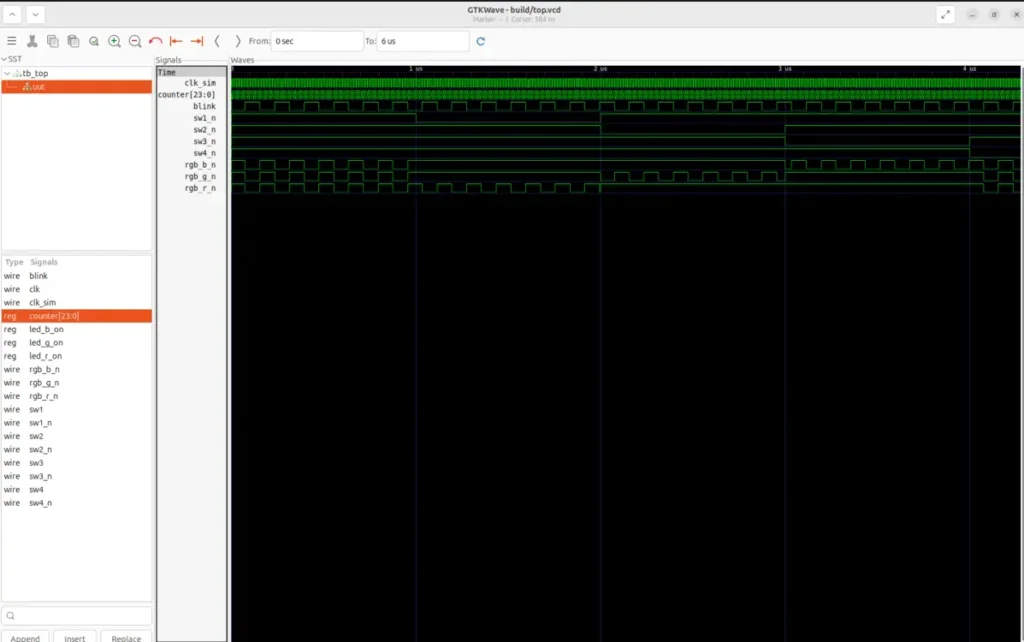
Once you open GTKWave, the most interesting signals to observe are:
- clk_sim
- blink
- sw1_n, sw2_n, sw3_n, sw4_n
- rgb_r_n, rgb_g_n, rgb_b_n
If desired, it’s also useful to add uut.counter and the internal signals led_r_on, led_g_on, led_b_on, as they further clarify the connection between color selection and final outputs. In particular, remembering that LEDs and switches are active low, reading the waveforms must be done carefully: when sw1_n drops to zero, it means that SW1 is active; when rgb_r_n drops to zero, it means that the red channel is on. This is one of those cases where simulation helps a lot precisely because it allows you to calmly see the logic without the noise of bench testing.
You may need to “shrink” the simulation graph on GTKWave. The following image shows the simulation on my setup:
After the simulation, you can launch the complete build of the project:
make
In this case, the Makefile executes the entire workflow: synthesis with Yosys, place and route with nextpnr-ice40, bitstream generation with icepack, and timing reporting with icetime. The final result is the generation of the main working files:
- build/top.json
- build/top.asc
- build/top.bin
- build/top.rpt
The .json file represents the result of the synthesis, the .asc is the output of the place and route, the .bin is the actual bitstream to be loaded onto the FPGA, while the .rpt contains the timing report. In other words, with a single make you go from the Verilog description to a file that can actually be programmed on the board. This is also an important point to underline: the flow was not only installed, but was actually verified thoroughly, first in simulation and then in full implementation.
Summary, place & route and report timing
After verifying in simulation that the logic behaves as expected, we can move on to the part that truly distinguishes a serious FPGA flow from a simple simulator exercise: transforming the project into a real configuration for the chip. In this phase, the Verilog code is no longer simply “executed” in a controlled environment, but is synthesized, mapped to the iCE40UP5K’s logic resources, physically connected inside the device, and finally converted into the bitstream that will be programmed on the board. All of this, in the project, is collected in the main target of the Makefile, so from the 02_setup_blink_rgb/ folder, simply run:
make
As we saw in the previous section, this command triggers the entire implementation flow. Specifically, Yosys performs the Verilog module synthesis and produces the build/top.json file, which represents the project in an intermediate form already logically mapped to the iCE40 family. Nextpnr-ice40 then takes that file, applies the .pcf constraints, performs the place and route, and generates build/top.asc, which contains the physical implementation of the project on the device. At this point, icepack comes into play, converting the .asc file into the actual binary bitstream build/top.bin, which is the file that will then be uploaded to the board. Finally, icetime produces build/top.rpt, which contains a useful estimate of the project’s timing. In short, after make, you expect to find at least these four files in the build/ folder:
- build/top.json
- build/top.asc
- build/top.bin
- build/top.rpt
So the project in this article really goes through all the classic phases of an FPGA flow: synthesis, physical implementation, bitstream generation, and timing analysis.
In our case, the design takes up a very small amount of chip resources, so the room for growth is enormous; furthermore, the internal clock chosen for the design is 12 MHz, while the implementation report shows a much higher maximum achievable frequency, so the timing is largely respected.
If you want, after the build you can also open nextpnr in graphical mode to observe the result of the place and route:
nextpnr-ice40 \
  --up5k \
  --package sg48 \
  --json build/top.json \
  --pcf constraints/icesugar_v15.pcf \
  --asc build/top.asc \
  --gui
This command isn’t necessary to generate the bitstream (the build is already complete), but it’s very useful for better understanding what the tool did. Specifically:
- –up5k indicates the target device,
- –package sg48 specifies the physical package of the FPGA mounted on the board,
- –json provides the result of the synthesis,
- –pcf pass pin constraints,
- –asc indicates the place and route output file,
- –gui opens the graphical inspection interface.
Don’t expect a polished environment like high-end commercial tools: nextpnr’s GUI is rather basic. However, for this project, it has concrete educational value because it allows you to locate at least one real physical resource associated with a signal in the project. For example, you can search for a BEL corresponding to one of the bound I/Os, such as the one tied to the red channel of the RGB LED. At that point, you’re observing something very simple but very important: the signal called rgb_r_n in the code, and which in the .pcf file was mapped to a physical pin, has actually ended up in a real resource on the chip. This doesn’t turn nextpnr into a fantastic graphical analysis tool, but it does provide concrete proof of the transition from logical description to physical implementation.
Let’s see the tool in action in the following images:

The screenshot shows the nextpnr GUI after the project has been placed and routed on the Lattice iCE40UP5K. This is a representation of the chip’s physical resources. In the central pane, a portion of the FPGA matrix is visible; the small element highlighted in orange corresponds to the selected BEL, i.e., a real physical resource of the device. In this case, X5/Y31/io0 was searched for and selected, visible both in the search box at the top right and in the BEL list. The properties panel, also on the right, confirms that it is an SB_IO type block, therefore an input/output resource of the FPGA. The practical significance of this screenshot is very simple but important: a signal defined in the Verilog code and bound in the .pcf file does not remain an abstract name, but is actually associated with a precise physical position within the chip. In conclusion, the top.v → .pcf → place and route chain actually leads to a real hardware resource within the FPGA.
Board programming via iCELink
At this point, the project can no longer simply be simulated or synthesized: there is also a real bitstream ready to be loaded onto the FPGA. In the case of the iCESugar, this phase is particularly convenient because it does not require, at least for this project, separate programming tools or complex procedures: the board exposes a virtual USB disk called iCELink, managed by the onboard debugger, and programming can be done very simply by copying the build/top.bin file into it. This loading method is very convenient because the bitstream is generated, copied to the exposed device via USB, and, after a few seconds, the FPGA begins executing the new configuration.
Before programming the board, it’s a good idea to double-check that the virtual disk is actually mounted by the system. This can be done with:
mount | grep -Ei 'iCELink|MBED|/media/'
If all went well, you should see a mountpoint similar to /media/<user>/iCELink. Now go to the project folder and copy the newly generated bitstream:
cp build/top.bin /media/$USER/iCELink/
sync
The sync command simply forces a disk flush, preventing the copy from being cached for a few moments. Alternatively, if you prefer to use the file manager, you can also manually drag build/top.bin onto the iCELink virtual disk. Functionally, this doesn’t change anything. However, it’s important to note that the virtual disk doesn’t always behave like a normal USB stick: even after copying, it may continue to display standard files like DETAILS.TXT, README.HTM, or similar. This doesn’t mean the programming has failed. In our case, in fact, real-world testing confirmed that the board is being programmed correctly even if the content displayed on the disk doesn’t change intuitively.
The following image shows what the iCELink virtual disk folder looks like:
Once the copy is complete, wait a few seconds and observe the behavior of the onboard RGB LED. If the bitstream was loaded correctly, the project runs and responds to the DIP switches as defined in the code: SW1 selects flashing red, SW2 green, SW3 blue, SW4 white, while if no switches are active, the default behavior is flashing white.
To further solidify the verification, a persistence test was also performed: after programming the board, the iCESugar was unplugged and replugged, verifying that the loaded behavior remained active even after the power cycle. This point is far from secondary, as it confirms that we are not simply performing a temporary “volatile” configuration, but that the programming path via iCELink is effectively sufficient, in this context, to make the project available even after the board is next rebooted.
After copying, the final check should not be done on the file manager but on the hardware: RGB LEDs and DIP switches must behave exactly as defined in the project.
The following video shows the board in operation:
Problems encountered and useful notes
As often happens when moving from theory to real-world testing, this first project also highlighted some practical details worth addressing right away, both to avoid false starts and to save time for those who will retrace the same steps. The first concerns nextpnr‘s GUI: it exists, it starts correctly, and can be useful for some specific checks, but it shouldn’t be overestimated. It’s not as refined an environment as the more well-known commercial tools and, at least on a small project like this, it doesn’t offer a particularly readable view of the routing or critical paths. Where it can be useful, however, is in the ability to locate a specific physical resource on the chip, for example, a BEL associated with an I/O constrained by the .pcf file; in this case, it shows that a logical signal from the project actually ends up in a specific physical location on the FPGA. A second important point concerns icetime: during the flow, a warning related to the internal HFOSC oscillator may appear, but this shouldn’t be interpreted as a project failure or a structural timing issue. For this simple example, the most useful and reliable timing information is already that reported directly by nextpnr, which clearly shows that the project meets the 12 MHz requirement by a wide margin. On the hardware front, there is a small, very trivial but potentially insidious detail: the iCESugar’s DIP switches are really tiny and, on the newly arrived board, they are also protected by a thin film. It is very easy to miss them immediately or not understand at a glance whether they have actually been moved. Another practical note concerns the iCELink virtual disk: while very convenient for programming, it does not behave exactly like a normal USB stick. After copying the bitstream, in fact, the displayed content may continue to show the device’s standard files, without intuitively reflecting the operation just performed; this can give the impression that programming has not occurred, when in fact the board is updated correctly. Finally, on the software environment side, there is a small pitfall specific to Ubuntu 24.04: the nextpnr-ice40 and nextpnr-ice40-qt packages conflict, so to also have the GUI it is better to install nextpnr-ice40-qt directly, which still provides the nextpnr-ice40 executable.
Final conclusions
In conclusion, this second article has transformed a theoretical model into a complete and verified practical flow. We saw first of all that working with an FPGA means building a coherent chain step by step: a carefully prepared Linux environment, an installed and verified open-source toolchain, a properly detected board via USB, an orderly organized project, simulation before hardware, synthesis, and place and route before actual programming. Even a small project like this has already demonstrated some central concepts of FPGA work: the use of an internal oscillator, the distinction between sequential and combinatorial logic, the management of low active signals, the role of physical constraints in the .pcf file, and the fact that the names written in the Verilog source must then end up in real physical locations on the chip. We also learned to view the project as a first complete implementation that spans simulation, synthesis, physical implementation, bitstream generation, and hardware verification.
During the preparation of this project, the installation and check scripts were tested on an environment clean of the main FPGA tools; the project was rebuilt from scratch; simulation with GTKWave demonstrated the expected testbench behavior; the board was programmed via iCELink; the behavior of the RGB LED and DIP switches was confirmed in hardware; the persistence of the bitstream after disconnecting and reconnecting was verified; even the correct replacement of the bitstream was verified by temporarily loading a variant with visibly different behavior and then restoring the final version of the project. In conclusion, an FPGA is not a mysterious object for specialist laboratories, but a tool that can be approached with order, rigor, and a good workflow.
Newsletter
If you want to be informed about the release of new articles, subscribe to the newsletter. Before subscribing to the newsletter read the page Privacy Policy (UE)
If you want to unsubscribe from the newsletter, click on the link that you will find in the newsletter email.
🔗 Follow us on our social channels so you don’t miss any updates!
📢 Join our Telegram channel to receive real-time updates.
🐦 Follow us on Twitter to always stay informed about our news.
🦋 Follow us on Bluesky if you prefer this platform
Thank you for being part of our TechRM community! 🚀